Showing posts with label jquery. Show all posts

Thursday, February 1, 2024

Select and Insert value from dropdown multiple, write and insert multiple values

 Hello. 

Today I want to show you how to select values from dropdown, Write or insert values from dropdown and save to database and manage it.


DB table name : maternal_disease

fields: mdid, cid, shortname, status, display, createdby, createdate, updatedby, updatedate

main php file code : 

<div class="col-sm-4">
                                        <input type="hidden" name="jobskillarray" id="jobskillarray" value="">
                                        <p id="jobskillmsg"></p>
                                        <div id="servicesList2" class="servicesList2"> </div>
                                        <input type="text" name="tag_name2" id="tag_name2" placeholder="Required Skills" list="skilllist2">
                                         
                                        <button type="button" class="btn btn-primary" id="addSkillBtn2">Add This Disease</button>
                                        <datalist id="skilllist2">
                                          <?php foreach ($maternalDiseaseList as $tag) { ?>
                                               <option ><?php echo $tag['shortname'] ?></option>
                                          <?php } ?>
                                        </datalist>
                                        
                                    </div>
<script type="text/javascript">
        $(document).ready(function() {
        var quotations = [];
        var quotations_id = [];
        $('#addSkillBtn2').click(function(e) {
          //debugger;
          var len = quotations_id.length;
          $("#jobskillmsg").html('');
          if (len < 15)
          {
              let tag_name2 = $('#tag_name2').val();
              let tagname2 = tag_name2.slice(0, 100);
              $("#skillMsg").html('');
              console.log(quotations);
              //console.log(quotations_id);
              //debugger
              var data = {};
              if ( tagname2.length >= 2 ){
                //if ($.inArray(tagname2, quotations) == 0) { 
                if ($.inArray(tagname2, quotations) >= 0) { 
                    console.log(quotations);
                } 
                else {
                  //console.log(quotations);
                  //console.log(quotations_id);
                  //debugger;
                  $.ajax({
                        url: 'ajax.php',
                        type: 'POST',
                        dataType: 'json',
                        data: {set_maternal_disease: tagname2},
                        //processData: false,
                        //contentType: false,
                        beforeSend: function(){
                              $('#mydiv').show();
                            },
                        success: function(response) {
                          $('#mydiv').hide();
                          //console.log(quotations);
                          //console.log(quotations_id);
                          //debugger;
                            if (response.message == 'success') {
                               var itemname = response.data.name;
                                var itemid = response.data.id;
                                    //console.log('Value Not exists');
                                    quotations.push(itemname);
                                    quotations_id.push(itemid);
                                    var item = document.createElement("p");
                                    var skillli = '<span class="skillable" data-value="'+response.data.id+'" data-name="'+response.data.name+'" id="js_'+response.data.id+'" ><label for="">'+response.data.name+'</label><i title="delete this skill" id="icon-minus2" class="red right icon-minus-sign"> x </i></span>';
                                    item.innerHTML = skillli;
                                    document.getElementsByClassName("servicesList2")[0].append(item);
                                    $('#tag_name2').val('');
                                  //console.log(quotations);console.log(quotations_id);
                                  $('#jobskillarray').val(quotations_id);
                               
                            } else if (response.message == 'duplicate') {
                              // setTimeout(function() {
                              //     $("#skillMsgDuplicate").hide('blind', {}, 500)
                              // }, 5000);
                               $("#skillMsg").html("<div class='col-md-12'><div class='alert alert-warning'><strong>Sorry! </strong> Duplicate skill cannot be added. </div> </div>");
                            } else if (response.message == 'limit') {
                              // setTimeout(function() {
                              //     $("#skillMsgLimit").hide('blind', {}, 500)
                              // }, 5000);
                              $("#skillMsg").html("<div class='col-md-12'><div class='alert alert-danger'><strong>Sorry! </strong> Maximum 5 skills are allowed. </div> </div>");
                            } else {
                              alert('Error! Try again or refresh page.');
                            }
                        },
                        error: function() {
                          $('#mydiv').hide();
                            alert('Error occurred while adding the skill.');
                        }
                  });
                  return false; 
                  } //end if check value exist
              }
          } 
          else
          { 
            $("#jobskillmsg").html("<div class='col-md-12'><div class='alert alert-danger'><strong>Sorry! </strong> Maximum 15 Disease are allowed. </div> </div>");
          }
          console.log(quotations);
          console.log(quotations_id);
        });
        //end skill to post ajax
        //remove jobpost skill by modal
        $(document).on('click','#icon-minus2',
        function() 
        {
          var y = quotations_id;
          //if (confirm("Are you sure?")) {
            var $list =  $("#servicesList");
            listValue = $(this).parent().data('value');
            listName = $(this).parent().data('name');
            //alert(listValue);
            if (listValue !== '') {
              $("p span#js_"+listValue).remove();
              quotations_id = jQuery.grep(quotations_id, function(value) {
                        return value != listValue;
                      });
              $('#jobskillarray').val(quotations_id);
              quotations = jQuery.grep(quotations, function(value) {
                        return value != listName;
                      });
              //console.log(quotations_id);
              //console.log(quotations);
            }
              
          //}         
        });
        //end
        });
    </script>


ajax.php

//display maternal disease
if(isset($_POST['set_maternal_disease'])){
    $id_edit = string_sanitize(trim($_POST['set_maternal_disease']));
    
    $userid = $_SESSION['userid'];
    $cid = $_SESSION['cid'];
    $createddate = date("Y-m-d H:i:s");
    $disease = mb_substr($id_edit, 0, 100);
    $sql = "SELECT shortname, mdid FROM `maternal_disease` WHERE `shortname` = '".$disease."' AND `cid` = '".$cid."' AND `status` = '1' AND `display` = '1' ";
    $myquery = mysqli_query($db_conx, $sql);
    if(mysqli_num_rows($myquery) == 1)
    {
        $row = mysqli_fetch_assoc($myquery);
        $mdid = $row['mdid'];
        $shortname = $row['shortname'];
    } elseif (mysqli_num_rows($myquery) == 0) {
        //insert data
        $sql = "INSERT INTO `maternal_disease` (`cid`, `shortname`, `createdby`, `createddate`) VALUES ('".$cid."', '".$disease."', '".$userid."', '".$createddate."')";
        $insertDisease = mysqli_query($db_conx, $sql);
        if ($insertDisease === TRUE){
            $mdid = mysqli_insert_id($db_conx);
            $shortname = $disease;
        }
    } else {
    }
    $responseData = [
                    'message' => 'success',
                    'data' => ['name'=> $shortname, 
                                'id' => $mdid
                                ],
                ];
    echo json_encode($responseData);
}

Saturday, January 13, 2024

How to data scrap from other website

 Hello.

Today I am going to explain how to scrap data from other website. 

Web scraping requires careful consideration and adherence to ethical and legal standards. Before proceeding, ensure that you have the right to access and scrape the content, according to the website's terms of service.


Suppose we have one website and we want to copy some of its div data.


<!DOCTYPE html>
<html lang="en">
<head>
<meta charset="UTF-8">
<meta name="viewport" content="width=device-width, initial-scale=1.0">
<title>Scraping Example</title>
<script src="https://code.jquery.com/jquery-3.6.4.min.js"></script>
</head>
<body>
<div id="output"></div>
<script>
$(document).ready(function() {
// Set the URL of the target website
var url = 'https://www.portotheme.com/wordpress/porto_landing/';
// Make an AJAX request to fetch the HTML content
$.get(url, function(data) {
// Create a jQuery object from the HTML data
var $html = $(data);
// Use jQuery to select the desired div
var $targetDiv = $html.find('.row.sample-item-list.sample-item-list-loaded.sort-destination');
// Process each item within the div
$targetDiv.find('div.col-sm-6.col-lg-4.col-xxl-3').each(function() {
// Extract data for each item
var title = $(this).find('h3').text();
var link = $(this).find('a').attr('href');
// Get the inline style of the span.sample-item element
var inlineStyle = $(this).find('span.sample-item').attr('style') || '';
// Retrieve data-oi value
var dataOiValue = $(this).find('.sample-item').data('oi');
var fileName = dataOiValue.split('/').pop();
// Display the data in the output div
$('#output').append('<p>Title: ' + title + ', Link: ' + link + ' , filename:'+fileName+'</p>');
});
});
});
</script>
</body>
</html>

Friday, December 3, 2021

Any autocomplete box with select dropdown

 Any autocomplete dropdown, use this code

$(document).ready(function () {

    var orgid = "0";

    getSeverityList(orgid);

    var $advAutoComplete = $('#addForm87 input[name="orgs_id"]');

    $advAutoComplete.each(function()

    {

      var $el = $(this);

      $el.on( "autocompletechange", function( event, ui )

      {

          orgid = $(event.target).attr('data-selectedid');

          getSeverityList(orgid);

      });

    });

 });


Html is like this

<div style="" class="mui-textfield ui-front mui-col-md-6">
                                    <input name="orgs_id" class="autoCompCollAdv mui--is-empty ui-autocomplete-input mui--is-dirty" type="text" data-returnpropname="orgs_id" data-coll="12" data-alias="o" data-columns="{'ValueProperty':'_id', 'DisplayProperties':['_id','name'], 'FilterDBCols':['_id','name'], 'RunOnFocus':'true', 'Functions':{'Focus':'FocusFunc','Type':'TypeFunc'}, 'PermDBFilters':[] }" value="" data-modalid="addModel87" required="" data-dirty="0" data-selectedid="" autocomplete="off" data-oldval="">
                                    <label class="">Customer ID</label>
  </div>


run any ajax oj js function when bootstrap modal open

For any bootstrap modal open, these are by default class. These classes are not mention but this is worked.   

bs modal

These are default class.

js code for call when modal is open.

$(document).ready(function () {

$( '#editModel87' ).on('show.bs.modal', function(){

  //alert("I want this to appear after the modal has opened!");

  setTimeout(

    function() {

      var orgsid = $('#editForm87 input[name="orgs_id"]').attr('data-selectedid');

      var ticketId = $('#editForm87 input[name="key_id"]').val();

      getSeverityListEdit(orgsid,ticketId);

    }, 3000); // run after 3 seconds

  });

});


Friday, June 21, 2019

Run jQuery in phtml file

Hello

Here I saw you how to run jQuery in phtml file.

<script type="text/javascript">
//<![CDATA[
 require([
    'jquery'
], function($) {
 
    setTimeout(function() {
        $( "#iwd_opc_shipping_method" ).append( "<div class='iwd_opc_section_delimiter'></div>" );
        $( "#iwd_opc_discount" ).insertAfter( "#onepage-checkout-shipping-method-additional-load" )
      }, 2500);
     
      //$( "#iwd_opc_discount" ).insertAfter( "#onepage-checkout-shipping-method-additional-load" )
   }
 );
//]]>
</script>

**********************************************************************

<script type="text/javascript">
//<![CDATA[
 require([
    'jquery',
    'Magento_Ui/js/modal/alert'
], function($, alert) {
   $('#id-of-element').on('click', function(event){
        alert({
           content: $(event.target).parent().val()
        })
      })
   }
 );
//]]> 
</script>

****************************************************************

<script type="text/javascript">
//<![CDATA[
require(
    [
        'jquery',
        'Magento_Ui/js/modal/modal'
    ],
    function(
        $,
        modal
    )
    {
        var options = {
            type: 'popup',
            responsive: true,
            innerScroll: true,
            title: 'Qty Estimator',
            buttons: [{
                text: $.mage.__('Continue'),
                class: '',
                click: function () {
                    this.closeModal();
                }
            }]
        };

        var popup = modal(options, $('#popup-modal'));
        $("#click-me").on('click',function(){
            $("#popup-modal").modal("openModal");
        });

$('#rate, #box').keyup(function(){
var rate = parseFloat($('#rate').val());
var box = parseFloat($('#box').val());

$('#amount').val(rate * box);
var amount = rate * box;

if(amount != null || amount != undefined) {
  $('#amount2').val(amount / 20);
 }
 });
    }
  );

//]]>
</script>

Wednesday, May 3, 2017

Top 4 jQuery Image Cropping / Resizing Plugins

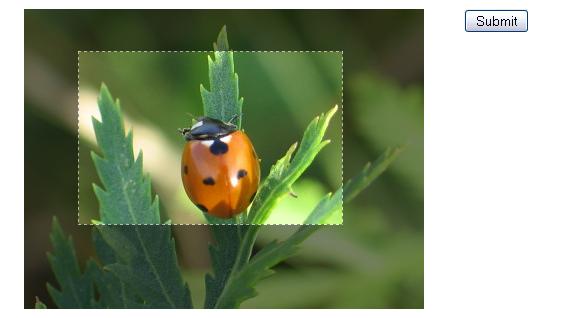
Uploading big photo take lot’s of space on server, you must have seen this feature on big website like facebook and google+ while uploading profile pic you can crop your photo and resize pic during upload, It helps to choose best size of your photo and also reduce space on server.

1. RCrop – Responsive Cropper Jquery Plugin

 Responsive Cropper is a JQuery plugin that lets you select an area from an image and prepare crop information to send it to the server.
You don’t need to trigger any event to update crop area when image is resized: this plugin is full responsive. Crop area uses percentages to guarantee full responsiveness, while crop data is stored separately in absolute values.
You can access to crop data easily throw methods, but also plugin makes things easy for you: inputs are are generated and filled with crop information to send to the server.
Last, you can activate a preview or, even, get a base64 image encoded. All that on the client side.
Features:
* Responsive (percentage values)
* Preserve Aspect ratio: shift key or from options
* Easy CSS/SCSS full customization
* Grid
* Minimum and Maximum crop area
* Mobile compatibility
* Methods and Events

DOWNLOAD


2. Simple Cropper

Simple Cropper is a jQuery plugin which gives you ability to add cropping functionality to your web application. It uses html5 canvas to create cropped images and css3, so it only works on latest browsers.
Features:
* Attaches to any div element
* Automatically detects aspect ratio of an element
* Creates new cropped(base64 encoded) image and inserts it into element
* Cropped images are generated client-side
* Support for CSS styling

DOWNLOAD


3. Jquery Cropbox

 jQuery plugin for in-place image cropping (zoom & pan, as opposed to select and drag).
This plugin depends only on jQuery. If either Hammer.js or jquery.hammer.js is loaded, the cropbox plugin will support gestures for panning and zooming the cropbox. Similary, if the jquery.mousewheel.js plugin is loaded, then the cropbox plugin will support zoom in & out using the mousewheel. All dependencies on third party libraries (other than jQuery) are strictly optional. Support for CommonJS and AMD loading is built in.
In browsers that support the HTML5 FIle API and Canvas API, the cropbox plugin provides mehtods to crop the image on the client and obtain the resulting cropped image as a Data URL or a binary blob to upload it to the server.

DOWNLOAD

4. Croppie – A Javascript Image Cropper

Croppie is a fast, easy to use image cropping plugin with tons of configuration options, Croppie is an Html5 canvas based image cropping library that lets you create a square or circular viewport permitting to visually resize an image while preserving aspect ratio and perform a crop. Also can be used as a jQuery plugin.

DOWNLOAD

Thursday, April 27, 2017

5 File Upload Plugins in jQuery

Here i explain some file upload plugins in jQuery. I hope these will help you.

1. Uploadify

Uploadify™ is a jQuery plugin that allows you to easily add multiple file upload functionality to your website. Two distinct versions (HTML5 and Flash) allow you the flexiblity to choose the right implementation for your site and fallback methods make it degrade gracefully.
Features:
* Multiple File Uploads
* Drag and Drop
* Real-Time Progress Indicators
* Custom Upload Restrictions
* Extreme Customization

DEMO / DOWNLOAD 


2. Fileuploader

Beautiful and powerful HTML5 file uploading tool. A jQuery and PHP plugin that transforms the standard file input into a revolutionary and fancy field on your page.You can very easy design your own input and file preview elements with HTML/CSS and jQuery. We have also prepared 4 responsive and clean templates that you can use.It is very easy to implement the Fileuploader plugin into your Webpage, also based on WordPress, Joomla, TYPO3, Laravel and others.
Features:
* Design your own input
* Add files from different folders
* Drag&Drop and Ajax upload
* Enable the edit mode
* Validate and control

DEMO / DOWNLOAD 


3. Plupload

Plupload using HTML5 APIs. Always. Plupload is based on multi-runtime pollyfills for XMLHttpRequest L2, File and Image APIs. So when there’s no HTML5 available in the browser.Files that have to be uploaded can be small or huge – about several gigabytes in size. In such cases standard upload may fail, since browsers still cannot handle it properly. We slice the files in chunks and send them out one by one. You can then safely collect them on the server and combine into original file.
Features:
* Upload in HTML5
* Drag’n’Drop Files from Desktop
* Access Raw File Data
* Shrink Images on Client-Side
* Upload in Chunks
* Translated to 30+ Languages

DEMO / DOWNLOAD 


4. jQuery Upload File

jQuery File UPload plugin provides Multiple file uploads with progress bar. jQuery File Upload Plugin depends on Ajax Form Plugin, So Github contains source code with and without Form plugin.
Features:
* Single File Upload
* Multiple file Upload (Drag & Drop)
* Sequential file upload
* File Restrictions
* Localization (Multi-language)
* Sending Form Data
* Adding HTML elements to progressbar
* Custom UI
* Upload Events
* Delete / Download Uploaded files
* Image Preview
* Show previous uploads

DEMO / DOWNLOAD 


5. jQuery File Upload

File Upload widget with multiple file selection, drag&drop support, progress bars, validation and preview images, audio and video for jQuery UI.
Supports cross-domain, chunked and resumable file uploads and client-side image resizing.
Works with any server-side platform (PHP, Python, Ruby on Rails, Java, Node.js, Go etc.) that supports standard HTML form file uploads.

DEMO / DOWNLOAD

Thursday, March 23, 2017

Create one image from multiple image or from div content

Hello
Today i create one single image from content of div.
Code :
<!DOCTYPE html>
<html>
<head>
    <title></title>
    <style type="text/css" media="screen">
        body {
    font-family: "Lucida Grande", "Lucida Sans", Arial, sans-serif;
    font-family: "HelveticaNeue-Light", "Helvetica Neue Light", "Helvetica Neue", Helvetica, Arial, "Lucida Grande", sans-serif;
}
.dataset {
    float: left;
    vertical-align: top;
}
.widget {
    display: inline-block;
    background-color: white;
    font-size: 14px !important;
    line-height: 20px !important;
    margin: 5px;
    vertical-align: top;
    color: #333;
    border-radius: 5px;
    margin: 10px;
    padding-bottom: 20px;
    border: 1px solid lightgray;
    border-radius:5px;
    -webkit-border-radius: 5px;
    display: inline-block;
    page-break-after: always;
}
.widget .header p {
   padding: 10px;
   border-bottom: 1px solid lightgrey;
   max-width: 360px;
}
.widget .header .title {
    font-weight: bold;
    vertical-align: middle;
    min-height: 36px;
    padding: 5px 10px 5px 10px;
}
.widget .header:hover {
    background-color: #f4f4f4;
}
.widget .header  .title.selected {
    border-color: cornflowerblue;
    background-color: #EEF;
}
.widget .content {
    padding: 5px;
    overflow-y: auto;
    max-height: 400px;
}
.autolayout {
    display: inline-block;
}
.element {
    width: 360px;
}
.compact .content {
    display: table;
    width: 100%;
}
.compact .row {
    display: table-row;
    width: 100%;
}
.compact .cell {
    display: table-cell;
}
.compact .row.selected {
    background-color: #eee;
}
.toolbar {
    display: block;
    vertical-align: top;
    margin: 10px;
}
.toolbar .basis {
    min-width: 100px;
}
.btn {
    /*min-width: 60px;*/
}
.cell.value {
    overflow: hidden;
    text-wrap: none;
    white-space: nowrap;
    text-overflow: ellipsis;
    text-align: right;
    padding-right: 10px;
}
.cell.freq {
    width: 60px;
}
.cell.glyph {
    vertical-align: middle;
    width: 100px;
}
.element {
}
.element table {
    table-layout: fixed;
    width: 100%;
}
.element td {
    padding: 0px;
}
.element .selectable:hover {
    background-color: #f4f4f4;
}
.element .stat {
    text-align: right;
    padding-right: 20px;
    font-weigth: bold;
    color: darkgray;
}
.element .bar {
    height: 18px;
    display: inline-block;
    float: left;
}
.bar-both {
    background-color: #0a67a3 !important;
}
.bar-fg {
    background-color: #3e97d1 !important;
}
.bar-bg {
    background-color: #ddd !important;
}
.selected .bar-fg {
    background-color: #FC0;
}
.selected .bar-both  {
    background-color:#FA0;
}
tr.selected {
    background-color: #eee;
}
.crosstab .selectable:hover {
    background-color: #f4f4f4;
}
.crosstab tr.selected {
    background-color: #eee;
}
.crosstab .header p {
    max-width: 600px;
}
.crosstab td {
  padding: 0 5px 0 5px;
  text-align: right;
}
.crosstab td.value {
  min-width: 60px;
  max-width: 240px;
  text-align: left;
}
.crosstab .cell {
    vertical-align: top;
}
.crosstab th.cell {
    max-width: 120px;
    overflow: hidden;
    white-space: normal;
    text-overflow: ellipsis;
    text-align: right;
    padding-right: 10px;
    vertical-align: bottom;
}
.crosstab .n {
    color: darkgray;
}
.fieldlist {
}
.constraints {
    min-width:300px;
    padding: 10px;
    border-radius:5px;
    -webkit-border-radius: 5px;
}
.constraints table {
    width: 100%;
}
.sidenote {
  max-width:300px;
  padding: 0 10px 0px 10px;
  display: inline-block;
  vertical-align: top;
}
.headnote {
    max-width: 600px;
    padding: 10px;
    margin: 10px;
    display: inline-block;
}
.info-block {
    /*border: 1px solid lightgrey;*/
    background-color: #eee;
    vertical-align: top;
    margin: 10px;
    padding: 10px;
    display: block;
    /*box-shadow: 0 0 0 0px #9bc0cf, 0 0 0 3px #e0ebf0;*/
}
.menu-item {
}
.menu-item-value {
    text-align: right;
    float: right;
}
.gradient-blue {
    background: #b8e1fc; /* Old browsers */
    /* IE9 SVG, needs conditional override of 'filter' to 'none' */
    background: url(data:image/svg+xml;base64,PD94bWwgdmVyc2lvbj0iMS4wIiA/Pgo8c3ZnIHhtbG5zPSJodHRwOi8vd3d3LnczLm9yZy8yMDAwL3N2ZyIgd2lkdGg9IjEwMCUiIGhlaWdodD0iMTAwJSIgdmlld0JveD0iMCAwIDEgMSIgcHJlc2VydmVBc3BlY3RSYXRpbz0ibm9uZSI+CiAgPGxpbmVhckdyYWRpZW50IGlkPSJncmFkLXVjZ2ctZ2VuZXJhdGVkIiBncmFkaWVudFVuaXRzPSJ1c2VyU3BhY2VPblVzZSIgeDE9IjAlIiB5MT0iMCUiIHgyPSIwJSIgeTI9IjEwMCUiPgogICAgPHN0b3Agb2Zmc2V0PSIwJSIgc3RvcC1jb2xvcj0iI2I4ZTFmYyIgc3RvcC1vcGFjaXR5PSIxIi8+CiAgICA8c3RvcCBvZmZzZXQ9IjEwJSIgc3RvcC1jb2xvcj0iI2E5ZDJmMyIgc3RvcC1vcGFjaXR5PSIxIi8+CiAgICA8c3RvcCBvZmZzZXQ9IjI1JSIgc3RvcC1jb2xvcj0iIzkwYmFlNCIgc3RvcC1vcGFjaXR5PSIxIi8+CiAgICA8c3RvcCBvZmZzZXQ9IjM3JSIgc3RvcC1jb2xvcj0iIzkwYmNlYSIgc3RvcC1vcGFjaXR5PSIxIi8+CiAgICA8c3RvcCBvZmZzZXQ9IjUwJSIgc3RvcC1jb2xvcj0iIzkwYmZmMCIgc3RvcC1vcGFjaXR5PSIxIi8+CiAgICA8c3RvcCBvZmZzZXQ9IjUxJSIgc3RvcC1jb2xvcj0iIzZiYThlNSIgc3RvcC1vcGFjaXR5PSIxIi8+CiAgICA8c3RvcCBvZmZzZXQ9IjgzJSIgc3RvcC1jb2xvcj0iI2EyZGFmNSIgc3RvcC1vcGFjaXR5PSIxIi8+CiAgICA8c3RvcCBvZmZzZXQ9IjEwMCUiIHN0b3AtY29sb3I9IiNiZGYzZmQiIHN0b3Atb3BhY2l0eT0iMSIvPgogIDwvbGluZWFyR3JhZGllbnQ+CiAgPHJlY3QgeD0iMCIgeT0iMCIgd2lkdGg9IjEiIGhlaWdodD0iMSIgZmlsbD0idXJsKCNncmFkLXVjZ2ctZ2VuZXJhdGVkKSIgLz4KPC9zdmc+);
    background: -moz-linear-gradient(top, #b8e1fc 0%, #a9d2f3 10%, #90bae4 25%, #90bcea 37%, #90bff0 50%, #6ba8e5 51%, #a2daf5 83%, #bdf3fd 100%); /* FF3.6+ */
    background: -webkit-gradient(linear, left top, left bottom, color-stop(0%, #b8e1fc), color-stop(10%, #a9d2f3), color-stop(25%, #90bae4), color-stop(37%, #90bcea), color-stop(50%, #90bff0), color-stop(51%, #6ba8e5), color-stop(83%, #a2daf5), color-stop(100%, #bdf3fd)); /* Chrome,Safari4+ */
    background: -webkit-linear-gradient(top, #b8e1fc 0%, #a9d2f3 10%, #90bae4 25%, #90bcea 37%, #90bff0 50%, #6ba8e5 51%, #a2daf5 83%, #bdf3fd 100%); /* Chrome10+,Safari5.1+ */
    background: -o-linear-gradient(top, #b8e1fc 0%, #a9d2f3 10%, #90bae4 25%, #90bcea 37%, #90bff0 50%, #6ba8e5 51%, #a2daf5 83%, #bdf3fd 100%); /* Opera 11.10+ */
    background: -ms-linear-gradient(top, #b8e1fc 0%, #a9d2f3 10%, #90bae4 25%, #90bcea 37%, #90bff0 50%, #6ba8e5 51%, #a2daf5 83%, #bdf3fd 100%); /* IE10+ */
    background: linear-gradient(to bottom, #b8e1fc 0%, #a9d2f3 10%, #90bae4 25%, #90bcea 37%, #90bff0 50%, #6ba8e5 51%, #a2daf5 83%, #bdf3fd 100%); /* W3C */
    filter: progid:DXImageTransform.Microsoft.gradient(startColorstr='#b8e1fc', endColorstr='#bdf3fd', GradientType=0); /* IE6-8 */
}
    </style>
    <script  type="text/javascript" src="//code.jquery.com/jquery-1.9.1.js"></script>
    <script type="text/javascript" src="https://cdnjs.cloudflare.com/ajax/libs/html2canvas/0.4.1/html2canvas.js"></script>
    <script type="text/javascript" src="https://cdnjs.cloudflare.com/ajax/libs/Base64/1.0.0/base64.js"></script>
    <script type="text/javascript" src="https://cdnjs.cloudflare.com/ajax/libs/html2canvas/0.4.1/html2canvas.js"></script>
    <script type="text/javascript">
//<![CDATA[
$(window).load(function(){
$(function() {
    $("#btnSave").click(function() {
        html2canvas($("#widget"), {
            onrendered: function(canvas) {
                theCanvas = canvas;
                document.body.appendChild(canvas);
                // Convert and download as image
                Canvas2Image.saveAsPNG(canvas);
                $("#img-out").append(canvas);
                // Clean up
                //document.body.removeChild(canvas);
               
            }
        });
    });
});
});//]]>
</script>
</head>
<body>
<span id="widget" class="widget" field="AGE" roundby="20" description="Patient age, in years">
    <div class="header ng-scope">
      <div class="title ng-binding">AGE</div>
      <p class="ng-binding">Patient age, in years</p>
    </div>
    <div class="element ng-scope">
      <div ng-show="hasData()" class="content">
        <table ng-model="table" class="ng-pristine ng-valid">
          <colgroup>
            <col/>
            <col width="60x"/>
            <col width="100px"/>
          </colgroup>
          <thead>
            <tr>
              <th class="cell value">Value</th>
              <th class="cell freq">Freq</th>
              <th class="cell value"></th>
            </tr>
          </thead>
          <tbody>
<tr ng-repeat="rowKey in table.rowKeys | orderBy:elementRowSort " ng-click="onSelect(rowKey, $event.shiftKey)" ng-class="{true:'selected'}[isSelected(rowKey)]" data-key="0" class="selectable ng-scope">
            <td class="cell value"><span tooltip="0 to 19" class="ng-scope ng-binding">0 to 19</span>
            </td>

            <td class="cell freq ng-binding">17.2%</td>
            <td class="cell glyph">
              <span class="bar bar-both" ng-style="{width: (table.getBothPct(rowKey) | barSize)+'%' }" style="width: 17.234468937875754%;"></span>
              <span class="bar bar-fg" ng-style="{width: (table.getFgPct(rowKey) | barSize) +'%' }" style="width: 0%;"></span>
              <span class="bar bar-bg" ng-style="{width: (table.getBgPct(rowKey) | barSize) +'%' }" style="width: 0%;"></span>
            </td>
          </tr><tr ng-repeat="rowKey in table.rowKeys | orderBy:elementRowSort " ng-click="onSelect(rowKey, $event.shiftKey)" ng-class="{true:'selected'}[isSelected(rowKey)]" data-key="20" class="selectable ng-scope">
            <td class="cell value"><span tooltip="20 to 39" class="ng-scope ng-binding">20 to 39</span>
            </td>
            <td class="cell freq ng-binding">18.0%</td>
            <td class="cell glyph">
              <span class="bar bar-both" ng-style="{width: (table.getBothPct(rowKey) | barSize)+'%' }" style="width: 18.03607214428858%;"></span>
              <span class="bar bar-fg" ng-style="{width: (table.getFgPct(rowKey) | barSize) +'%' }" style="width: 0%;"></span>
              <span class="bar bar-bg" ng-style="{width: (table.getBgPct(rowKey) | barSize) +'%' }" style="width: 0%;"></span>
            </td>
          </tr><!-- end ngRepeat: rowKey in table.rowKeys | orderBy:elementRowSort --><tr ng-repeat="rowKey in table.rowKeys | orderBy:elementRowSort " ng-click="onSelect(rowKey, $event.shiftKey)" ng-class="{true:'selected'}[isSelected(rowKey)]" data-key="40" class="selectable ng-scope">
            <td class="cell value"><span tooltip="40 to 59" class="ng-scope ng-binding">40 to 59</span>
            </td>

            <!--<td >{{table.getRowPercent('current', rowKey) | percent}}</td>-->
            <td class="cell freq ng-binding">34.3%</td>
            <td class="cell glyph">
              <!--<div class="bar bar-both" style="width: {{(row.current.pct * 100)||2}}px; " ></div>-->
              <span class="bar bar-both" ng-style="{width: (table.getBothPct(rowKey) | barSize)+'%' }" style="width: 34.2685370741483%;"></span>
              <span class="bar bar-fg" ng-style="{width: (table.getFgPct(rowKey) | barSize) +'%' }" style="width: 0%;"></span>
              <span class="bar bar-bg" ng-style="{width: (table.getBgPct(rowKey) | barSize) +'%' }" style="width: 0%;"></span>
            </td>
          </tr><!-- end ngRepeat: rowKey in table.rowKeys | orderBy:elementRowSort --><tr ng-repeat="rowKey in table.rowKeys | orderBy:elementRowSort " ng-click="onSelect(rowKey, $event.shiftKey)" ng-class="{true:'selected'}[isSelected(rowKey)]" data-key="60" class="selectable ng-scope">
            <td class="cell value"><span tooltip="60 to 79" class="ng-scope ng-binding">60 to 79</span>
            </td>

            <!--<td >{{table.getRowPercent('current', rowKey) | percent}}</td>-->
            <td class="cell freq ng-binding">24.0%</td>
            <td class="cell glyph">
              <!--<div class="bar bar-both" style="width: {{(row.current.pct * 100)||2}}px; " ></div>-->
              <span class="bar bar-both" ng-style="{width: (table.getBothPct(rowKey) | barSize)+'%' }" style="width: 24.04809619238477%;"></span>
              <span class="bar bar-fg" ng-style="{width: (table.getFgPct(rowKey) | barSize) +'%' }" style="width: 0%;"></span>
              <span class="bar bar-bg" ng-style="{width: (table.getBgPct(rowKey) | barSize) +'%' }" style="width: 0%;"></span>
            </td>
          </tr><!-- end ngRepeat: rowKey in table.rowKeys | orderBy:elementRowSort --><tr ng-repeat="rowKey in table.rowKeys | orderBy:elementRowSort " ng-click="onSelect(rowKey, $event.shiftKey)" ng-class="{true:'selected'}[isSelected(rowKey)]" data-key="80" class="selectable ng-scope">
            <td class="cell value"><span tooltip="80 to 99" class="ng-scope ng-binding">80 to 99</span>
            </td>

            <!--<td >{{table.getRowPercent('current', rowKey) | percent}}</td>-->
            <td class="cell freq ng-binding">6.4%</td>
            <td class="cell glyph">
              <!--<div class="bar bar-both" style="width: {{(row.current.pct * 100)||2}}px; " ></div>-->
              <span class="bar bar-both" ng-style="{width: (table.getBothPct(rowKey) | barSize)+'%' }" style="width: 6.4128256513026045%;"></span>
              <span class="bar bar-fg" ng-style="{width: (table.getFgPct(rowKey) | barSize) +'%' }" style="width: 0%;"></span>
              <span class="bar bar-bg" ng-style="{width: (table.getBgPct(rowKey) | barSize) +'%' }" style="width: 0%;"></span>
            </td>
          </tr><!-- end ngRepeat: rowKey in table.rowKeys | orderBy:elementRowSort -->
          <tr ng-show="getShowMean()" class="">
            <td class="stat">Mean</td>
            <td class="ng-binding">46.1</td>
          </tr>

          </tbody>
        </table>
      </div>

    </div>
  <!-- ngRepeat: field in getChildren(field) -->
</span>
<br/>
<input type="button" id="btnSave" value="Save PNG"/>

<div id="img-out"></div>

</body>
</html>
This code generates this result :
 

Thursday, March 16, 2017

hide second p tag jquery

Hello
here i explain you how to hide nearest div or class or p tag.


HTML

<select id="pa_subscription-option" class="" name="attribute_pa_subscription-option" data-attribute_name="attribute_pa_subscription-option" >
<option value="">Choose an option</option>
<option value="free-plan" class="attached enabled">Free Plan</option>
<option value="monthly-plan" class="attached enabled">Monthly Plan</option>
<option value="yearly-plan" class="attached enabled">Yearly Plan</option>
</select>

<div class=" product-addon product-addon-additional-camera"
            <h3 class="addon-name">Additional Camera </h3>
    <p class="form-row form-row-wide addon-wrap-76315-additional-camera-0">
                    <label>Monthly Subscription (<span class="amount">USD10.00</span>)</label>
                <input step="" class="input-text addon addon-input_multiplier" data-raw-price="10" data-price="10" name="addon-76315-additional-camera-0[monthly-subscription]" value="0" min="0" max="100" type="number">
        <span class="addon-alert" style="display: none;">This must be a number!</span>
    </p>
    <p class="form-row form-row-wide addon-wrap-76315-additional-camera-0">
                    <label>Yealy Subscription (<span class="amount">USD96.00</span>)</label>
                <input step="" class="input-text addon addon-input_multiplier" data-raw-price="96" data-price="96" name="addon-76315-additional-camera-0[yealy-subscription]" value="0" min="0" max="100" type="number">
        <span class="addon-alert" style="display: none;">This must be a number!</span>
    </p>
    <div class="clear"></div>
</div>


JAVASCRIPT

<script type="text/javascript">
    jQuery( document ).ready( function( $ ) {
        jQuery('#pa_subscription-option').on('change', function(){
var selsub = $( "#pa_subscription-option" ).val();
            if(selsub == 'yearly-plan'){
                $(".product-addon-additional-camera p").eq(0).hide();
                $(".product-addon-additional-camera p").eq(1).show();
            } else if(selsub == 'monthly-plan'){
                $(".product-addon-additional-camera p").eq(1).hide();
                $(".product-addon-additional-camera p").eq(0).show();
            } else {
                $(".product-addon-additional-camera p").eq(1).show();
                $(".product-addon-additional-camera p").eq(0).show();
            } 
         });
    });
</script>

eq(0) means first and eq(1) means second.